

I only tried to update the site, not sure what went wrong? The site layout is broken, custom functions stopped working, and worse, the backup I trusted is not working properly.
We all could have faced the above issue.
From my experience working with WordPress sites, especially when you’re running a real business or client-facing project, two things can trip you up fast:
- Automatic Updates Gone Wrong
- Backup and Restore That Works… Until It Doesn’t
Let’s break them down and talk solutions.
Automatic Updates Gone Wrong
WordPress updates are necessary; they patch security holes and improve features. But sometimes, they roll out changes that clash with your theme or plugins, especially if you’re running something custom.
Here’s how to avoid getting caught off guard:
Turn off auto-updates for major versions.
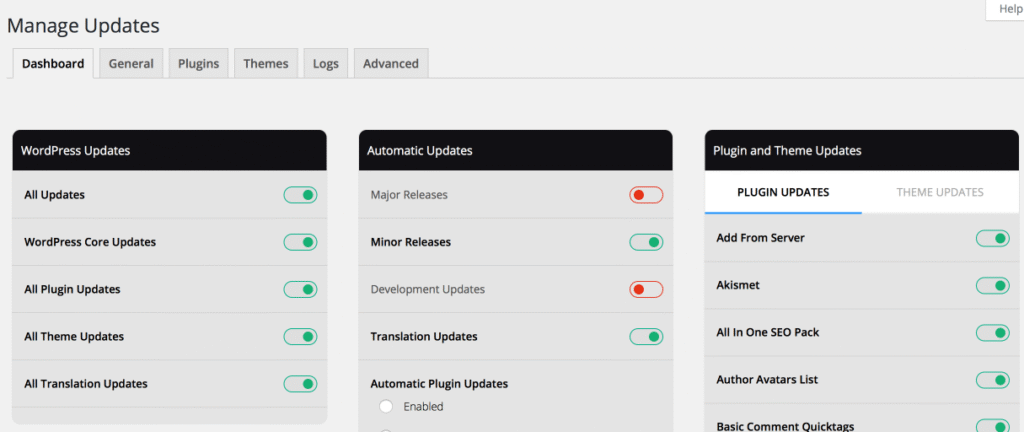
Not every site is ready for the latest shiny version of WordPress. Make sure to use a plugin like Easy Updates Manager to control what gets updated automatically or do it manually after testing.
Use a staging environment.
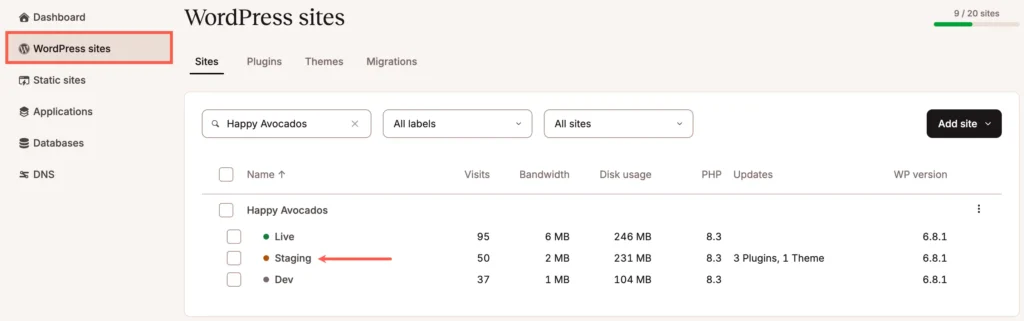
Always test updates in a sandbox. Most premium hosts (like Kinsta or SiteGround) offer one click staging. You can check if your layout, forms, or plugins break before touching the live site.
Document your custom code.
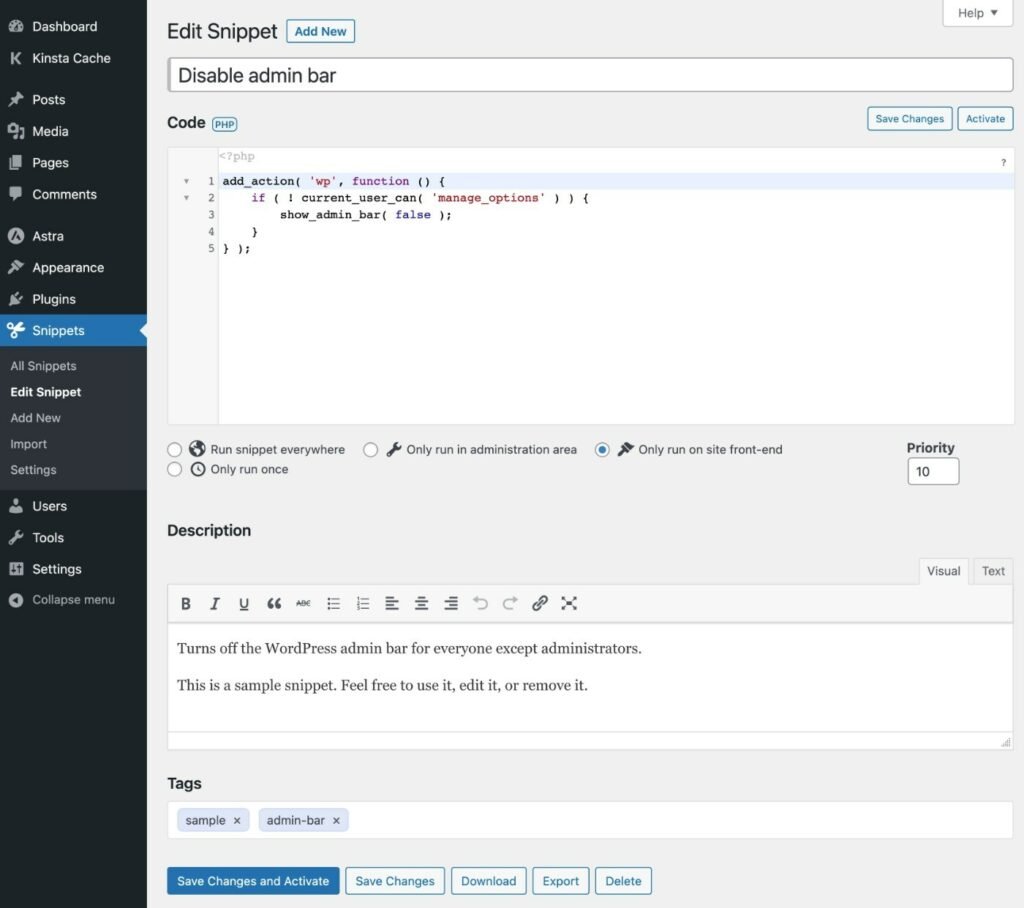
If you’ve tweaked functions.php or written custom shortcodes, keep track of them. Updates can override these without warning — especially with theme or plugin updates.
Backup and Restore Pain
Beware that a backup is only as good as your ability to restore it. And this is a place where many hosting plans disappoint.
From my experience, here’s what to look for:
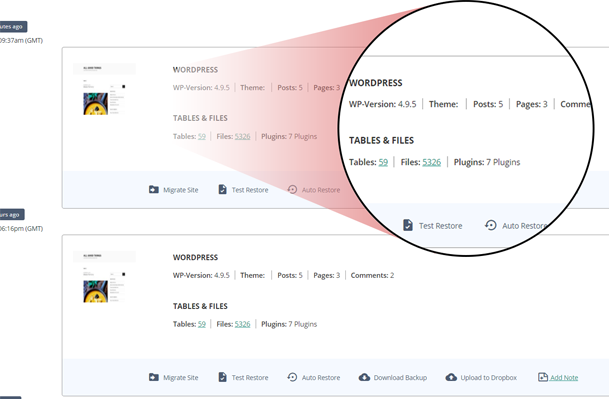
Daily automated backups, with one-click restore.
Not weekly. Not just “on demand.”
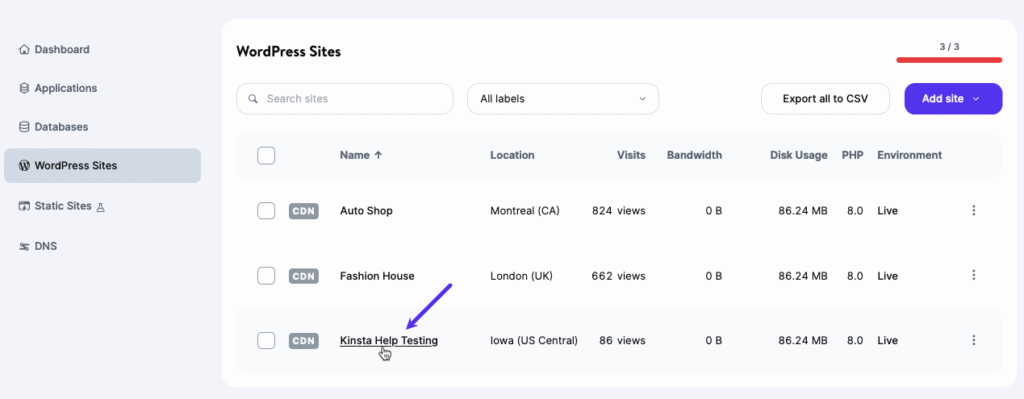
Make sure that you daily snapshot that you can roll back with a single click, not by filing a support ticket. Again reaching customer support or raising a ticket will eat your time and can not afford the time when the back up fails.
Downloadable and testable backups.
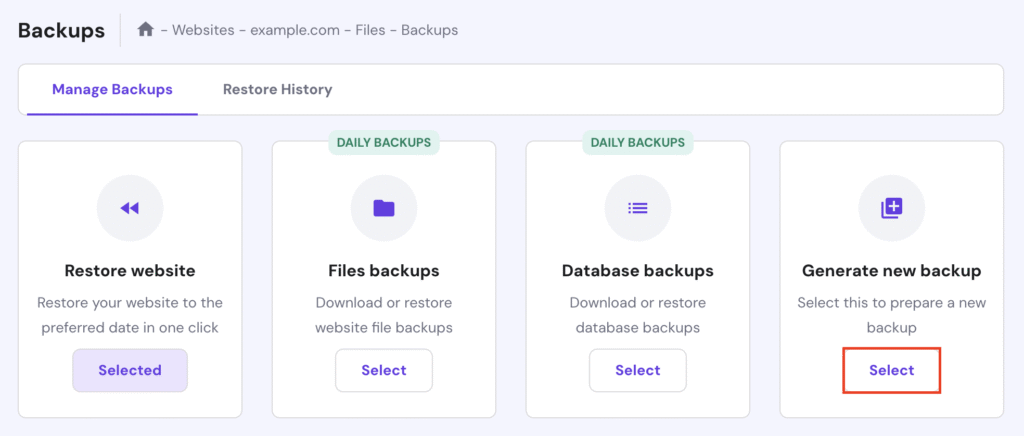
Your host should let you download a full backup (database + files) and restore it in a test environment. Some like Hostinger offer integrated backup tools that are easy to use and don’t require extra plugins.
Manual backup before risky changes.
Make sure that you before updating WordPress, plugins, or themes you take a manual backup. Most control panels offer this. It takes 2 minutes but saves hours later.
Cloud backup plugins as extra insurance.
If your host doesn’t offer solid backups, consider plugins like UpdraftPlus or BlogVault that store backups on Google Drive or Dropbox. You’ll thank yourself if the host-level backup fails.
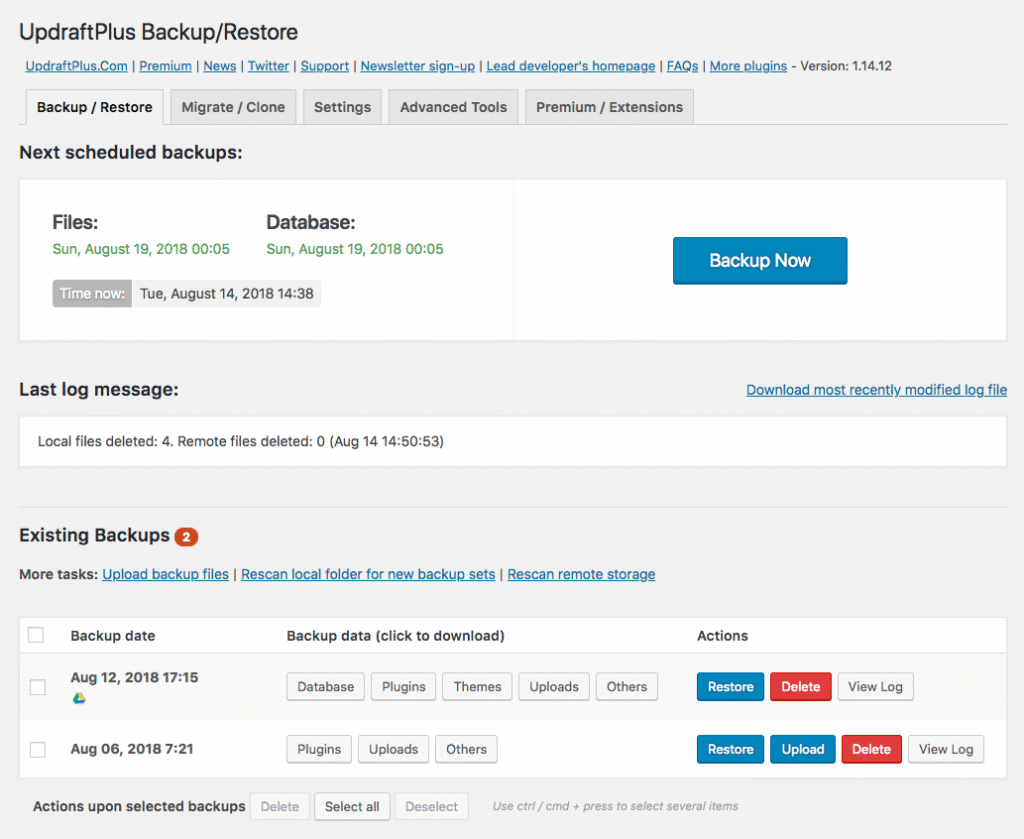
From my experience, it’s better to spend a few extra minutes setting things right than days trying to fix what went wrong.
Irrespective of the site’s nature, whether it’s a prototype, a product page, or a growing content site, control and recovery matter more than convenience.
- Automatic updates are good, but only if you control the timing.
- ∙ Backups are essential, but only if you can restore them without panic.
If you’re looking for a hosting provider that gets this right make sure they offer controlled update settings, staging environments, and daily backups with one-click restore.
Platforms like Hostinger have these tools in-built and priced for beginners without making you feel like you need a developer degree to use them.
When you site breaks down, all you need is a reset button that works so make sure you get a server that can serve your need.
